01Source analysis
Source
→Tone + edge
→Marks
Control tone, edges, and background
Adjust contrast, gamma, threshold, inversion, background ignore, edge emphasis, and local detail instead of accepting a single automatic conversion.
HoleSnap PatternImage-led pattern editor
Upload a photo, SVG, or logo. Map tone and edges into dots, halftones, or perforation geometry, refine the field, then export PNG, SVG, or DXF.
Browser based · Starter images included · Vector export requires sign-in
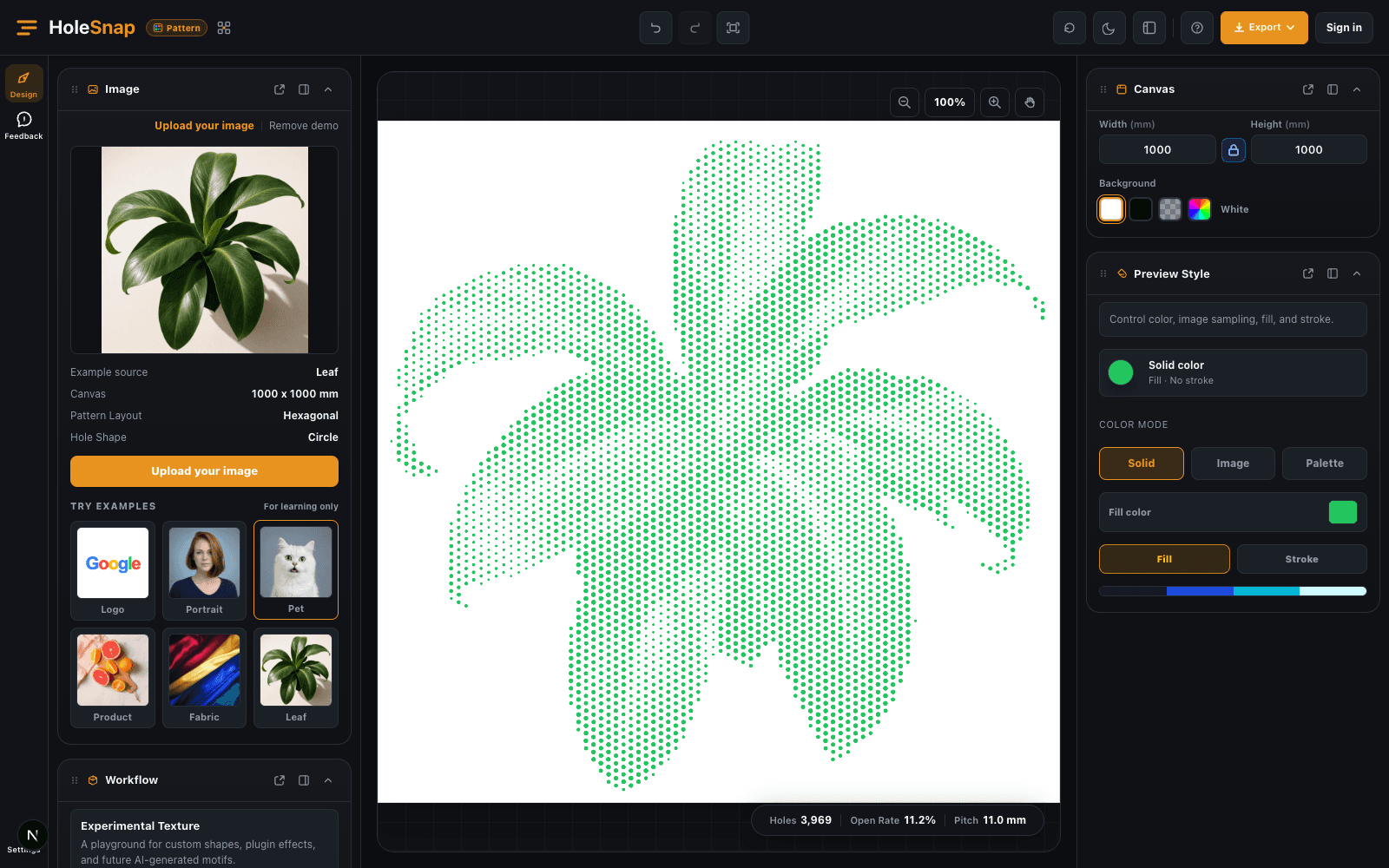

Source to pattern
Pattern reads tone, contrast, edges, and foreground regions, then samples that information across a configurable field. The result is newly generated geometry—not a copy of the source paths.
Map a source in Pattern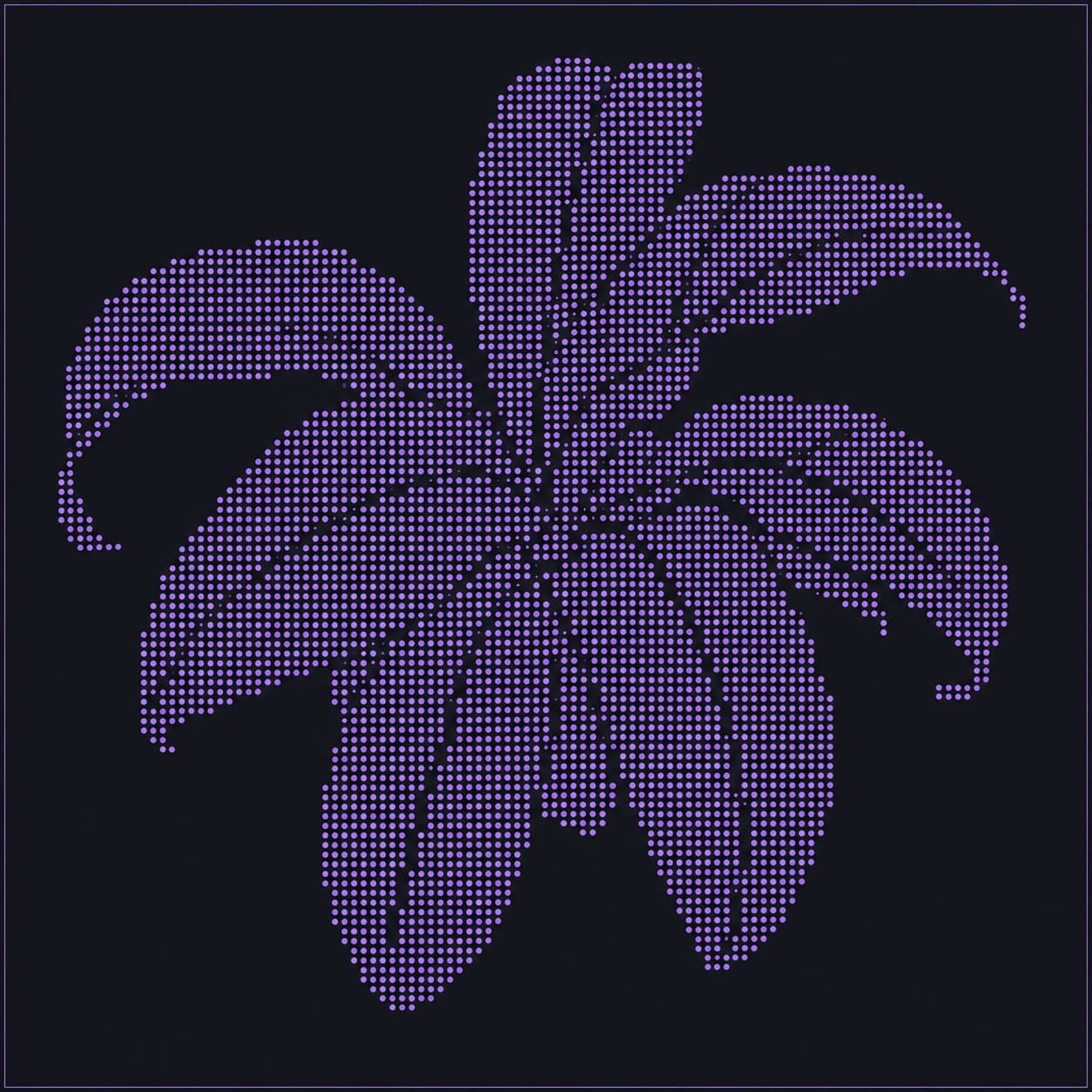
Workflow + core controls
The source remains visible while layout, mapping, shape, and output settings shape a new result around it.
Upload an image, SVG, or logo, or begin with a built-in starter image.
Tune the field, tone response, threshold, contrast, edges, shapes, and detail.
Review the generated marks and output checks, then export PNG, SVG, or DXF.
Adjust contrast, gamma, threshold, inversion, background ignore, edge emphasis, and local detail instead of accepting a single automatic conversion.
Choose grid, hexagonal, staggered, or triangular fields, then adjust pitch, density, rotation, offsets, and jitter.
Use circles, squares, diamonds, or triangles and decide how source tone controls size, fixed geometry, or light random variation.
Use current scene packs, style presets, and output recipes for logos, portraits, print graphics, panels, and screens.
Example output metrics
Illustrative count from the plant example shown above.
Illustrative spacing from the same example recipe.
Mapping feedback
The values shown here come from the static workspace example. Inside Pattern, hole count, open rate, pitch, preview, and export checks respond to the active source and settings. The related tools below open separately and do not read the current Pattern project.
Pattern presets and checks are design references, not manufacturing certification. Verify spacing, minimum features, scale, and material constraints before production.Scene Pack examples
Each example corresponds to a Scene Pack that is selectable in Pattern today and uses the application’s current source mapping, layouts, shape roles, and output checks.
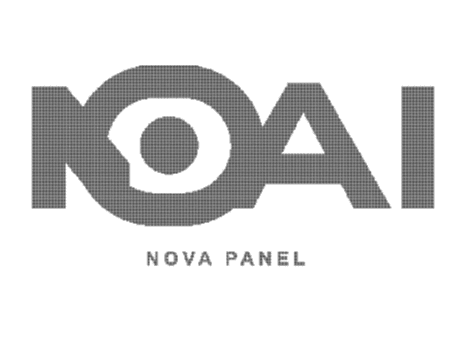
Map a high-contrast logo or mark into generated dots and edge-shape roles, then prepare PNG, SVG, or DXF output.
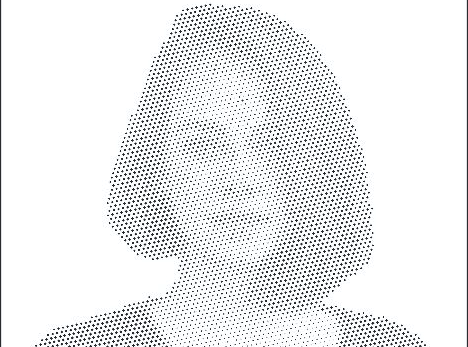
Apply the Portrait Stipple Scene Pack, then use contrast, gamma, background ignore, edge emphasis, and local detail to retain facial structure.
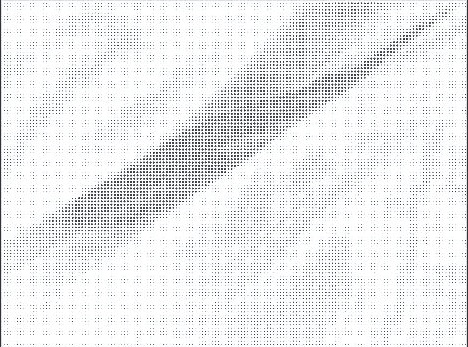
Use the Apparel Print Scene Pack and its print-oriented dot presets to translate fabric or graphic sources into a mapped field.
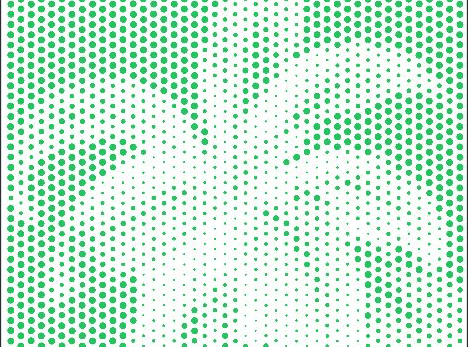
Use the Facade Screen Scene Pack with a hex field, main-and-edge shape roles, and live open-rate feedback before engineering review.
Choose your starting point
HoleSnap’s three applications share an export-focused workflow, but each begins with a different kind of source.
Image mapping, halftones, dot fields, shape roles, and PNG, SVG, or DXF outputs.
Open Pattern ↗Precise arrays, reusable geometry, gradients, boundaries, and engineering-oriented outputs.
Explore Mesh ↗Deterministic organic cells and flow-line geometry from generator-specific controls.
Explore Flow Scene ↗Pattern FAQ
The short version of Pattern’s source handling, outputs, checks, and product boundaries.
Pattern accepts PNG, JPEG, WebP, and SVG files used as image sources. You can also begin with a built-in starter image.
No. Pattern samples an SVG as an image source and generates new dot, halftone, or perforation geometry. It is not a lossless SVG path converter.
Pattern supports PNG preview output plus SVG and DXF vector exports. SVG and DXF exports require sign-in and are subject to the current quota and geometry limits. Pattern does not currently export STP or STEP.
No. Automatic analysis and presets provide a starting point, but foreground separation, contrast, spacing, bridge width, and minimum features can still require manual adjustment and fabrication review.
Pattern starts from an image, SVG, logo, photograph, or graphic. Mesh starts from precise parameters and reusable geometry. Flow Scene starts from an organic Cell or Flow generator and a reproducible seed.
HoleSnap Pattern
Start with your image, decide what visual information matters, and generate geometry you can continue tuning for print, vector, CAD, or panel workflows.
Start with Pattern